

PART 1: What is Bybit ?
Bybit is a cryptocurrency exchange known for its advanced trading tools, low fees, and powerful performance.
It supports derivatives, spot trading, staking, and even copy trading for beginners.
PART 2: How to Register an Account on Bybit
First, visit the official Bybit website at www.bybit.com or download the Bybit mobile app from your App Store or Google Play.

Click on the “Sign Up” button in the top right corner of the screen.

You can register using either your email or your phone number.
Enter your information, create a strong password, and agree to the terms.
Then, enter the verification code sent to your email or phone.
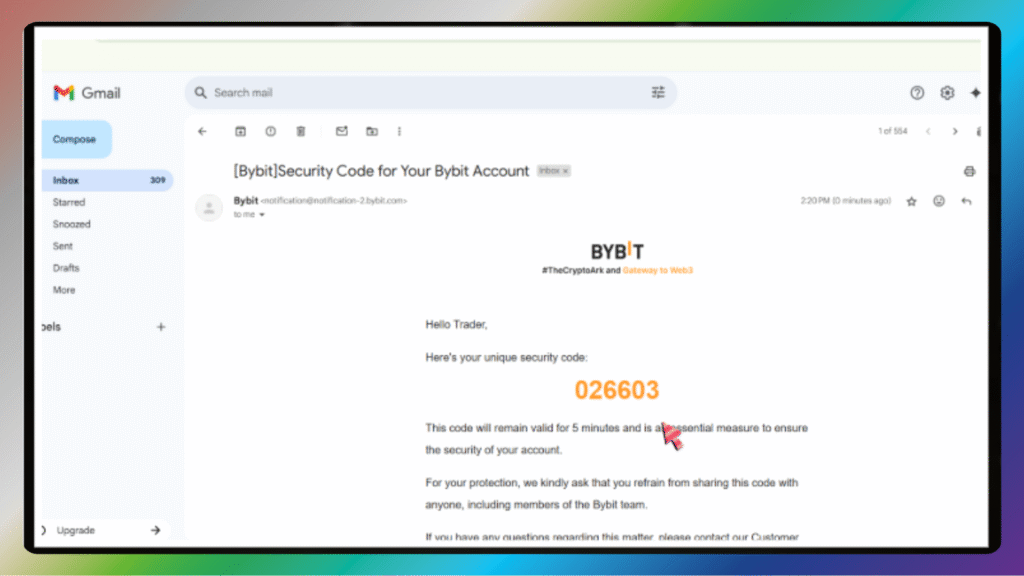
Once completed, your account is officially created.
PART 3: Why You Need Identity Verification
Identity verification, also known as KYC, is required for increased withdrawal limits and to access all features on Bybit.
It also protects your account from fraud and unauthorized access.
KYC is mandatory if you want to trade P2P, deposit fiat, or join Bybit Launchpad.
PART 4: How to Verify Identity (KYC) on Bybit
After logging in, go to your profile icon in the upper-right corner and click on “Account & Security.”
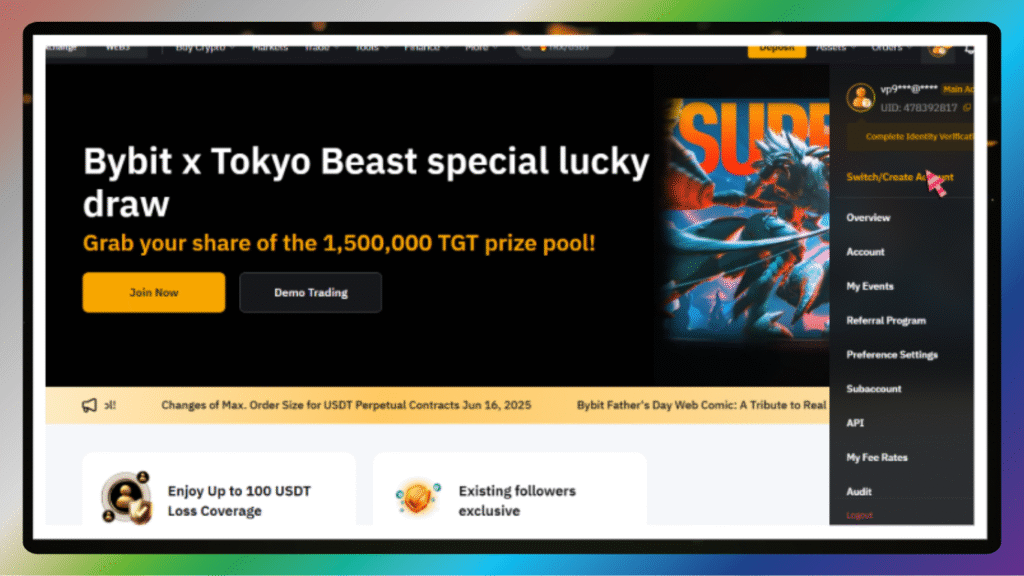
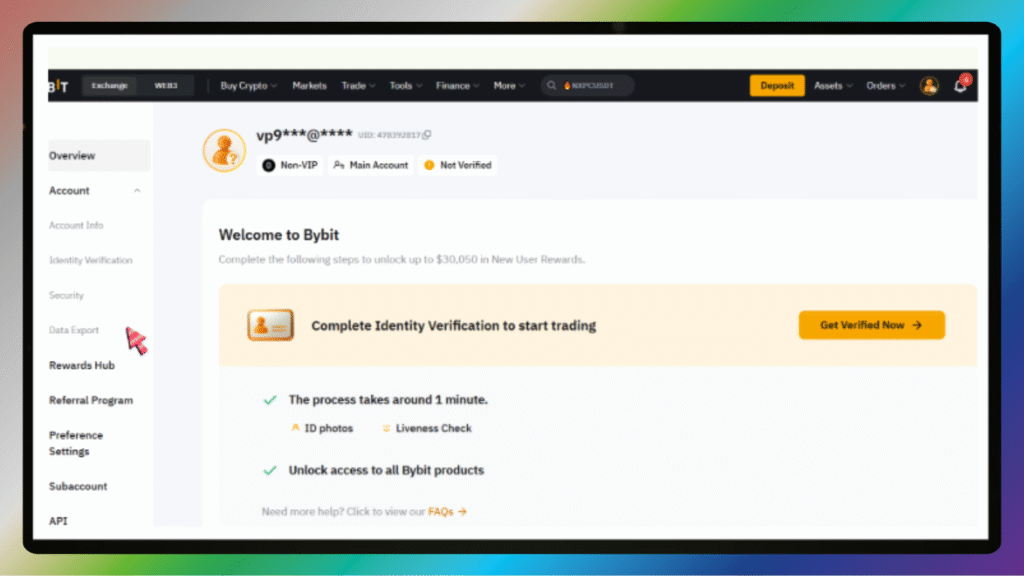
Click on the “Verify Now” button under the Identity Verification section.
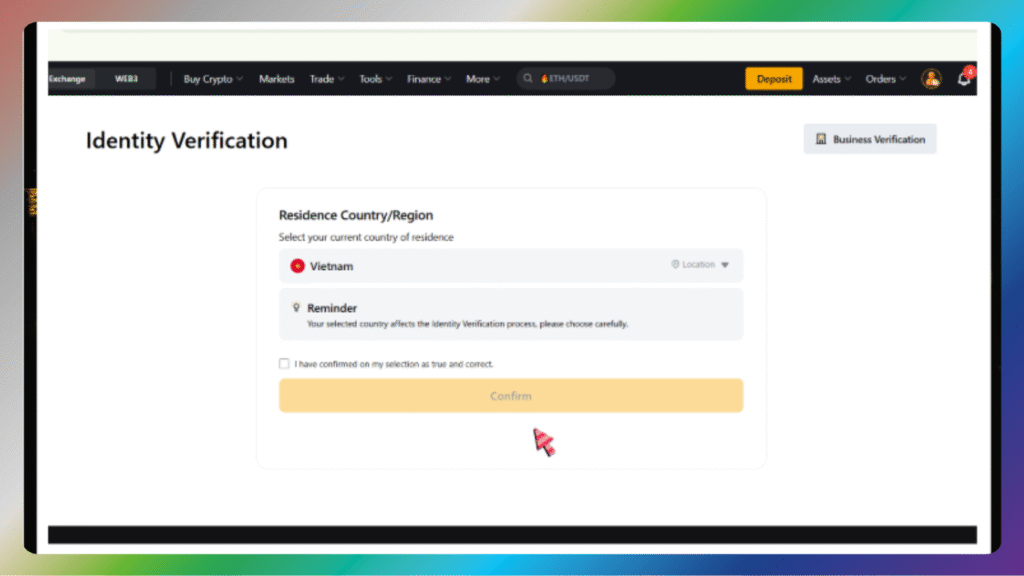
You’ll be asked to choose your country and the type of ID document you’ll use.
Supported documents include passports, national ID cards, and driver’s licenses.
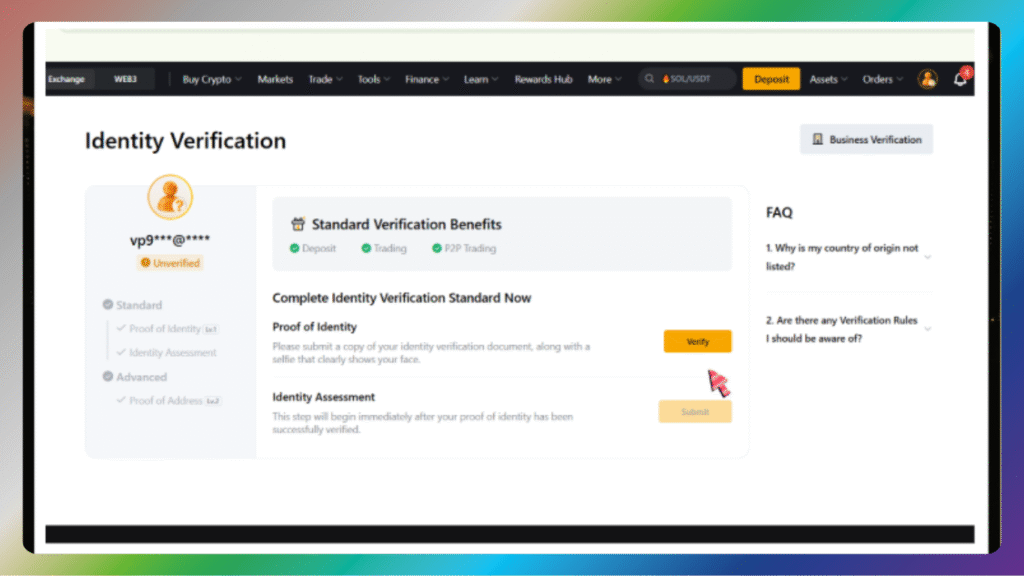
Upload a photo of your ID, and make sure the details are clear and not cropped.
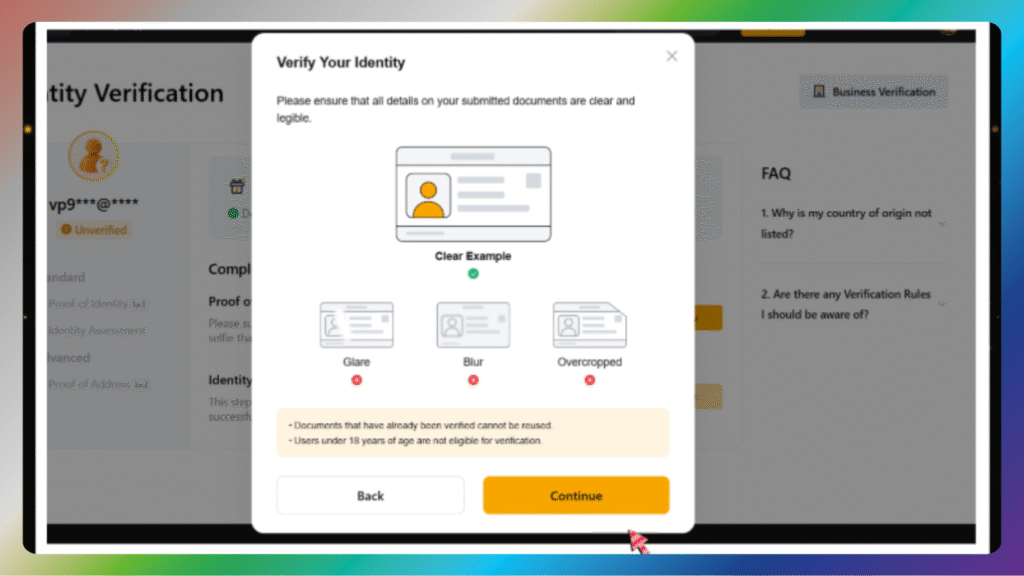
You will also be prompted to take a selfie or a short video to verify your identity.
Most verifications are approved within 10 minutes to a few hours.
PART 5: Common KYC Mistakes to Avoid
Don’t use blurry or dark photos – make sure everything is readable.
Use your legal name and accurate details that match your ID.
Don’t submit edited or filtered images – this can lead to rejection.
PART 6: Enable Two-Factor Authentication (2FA)
To protect your account, enable two-factor authentication (2FA) with Google Authenticator.
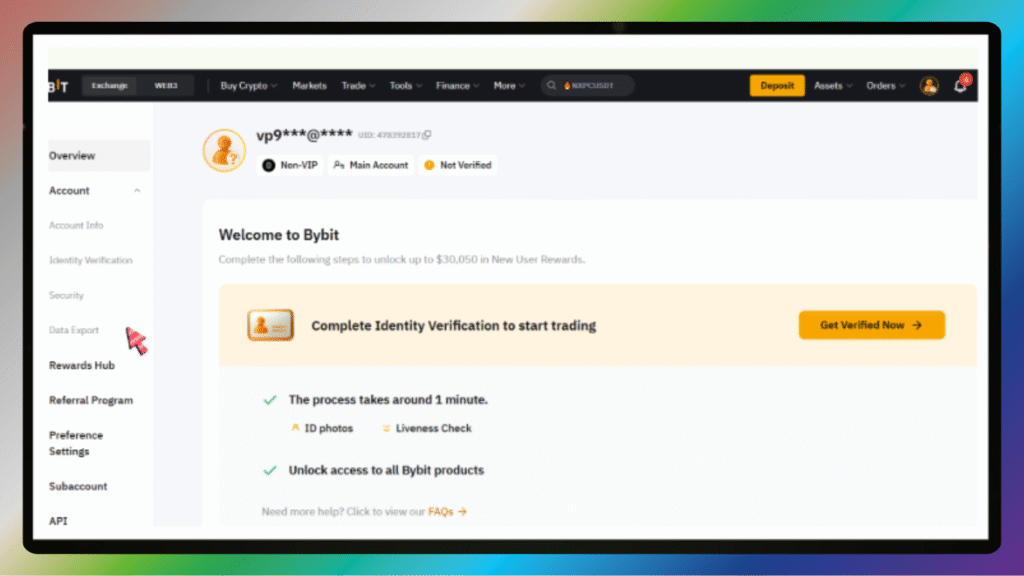
Go to “Account & Security” → “Google Authentication” and follow the steps to bind the code.
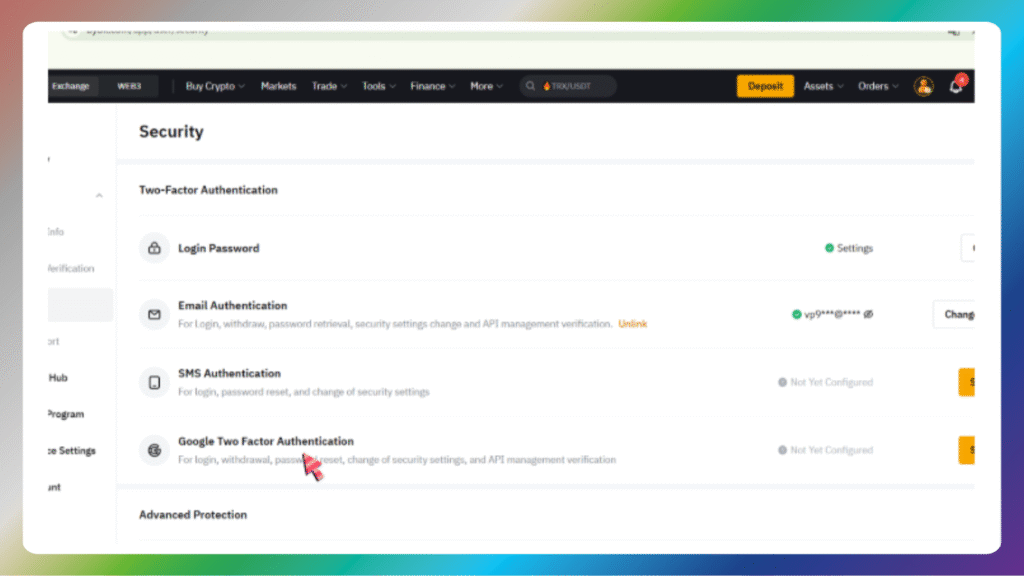
This adds an extra layer of security for your login and withdrawals.