


Skip to content
-
Subscribe to our newsletter & never miss our best posts. Subscribe Now!
VP9X Capital VP9X Capital VP9X Capital

Trusted Reviews for Hosting, Finance & Digital Platforms

VP9X Capital VP9X Capital VP9X Capital

Trusted Reviews for Hosting, Finance & Digital Platforms

  • Affiliate Networks
    • CJ Affiliate
    • Impact
    • PartnerStack
    • Awin
  • Finance
    • Forex Brokers
    • Crypto Exchanges
    • Crypto Wallets
    • Prop Trading Firms
    • Trading Platforms
  • AI Tools
    • AI Writing Tools
    • AI Voice & Audio
    • AI Image Generators
    • AI Video Tools
    • AI SEO Tools
  • Hosting
    • Domain Hosting
    • WordPress Hosting
    • VPS Hosting
    • Cloud Hosting
    • Shared Hosting
  • Reviews
    • Finance Reviews
    • Hosting Reviews
    • AI Reviews
  • Affiliate Networks
    • CJ Affiliate
    • Impact
    • PartnerStack
    • Awin
  • Finance
    • Forex Brokers
    • Crypto Exchanges
    • Crypto Wallets
    • Prop Trading Firms
    • Trading Platforms
  • AI Tools
    • AI Writing Tools
    • AI Voice & Audio
    • AI Image Generators
    • AI Video Tools
    • AI SEO Tools
  • Hosting
    • Domain Hosting
    • WordPress Hosting
    • VPS Hosting
    • Cloud Hosting
    • Shared Hosting
  • Reviews
    • Finance Reviews
    • Hosting Reviews
    • AI Reviews
  • https://www.facebook.com/
  • https://twitter.com/
  • https://t.me/
  • https://www.instagram.com/
  • https://youtube.com/
🔔 Subscribe
VP9x Capital

BingX Registration Guide for Beginners

2 Min Read
0

Let’s start by registering an account on BingX.

You can use either your email address or your phone number.

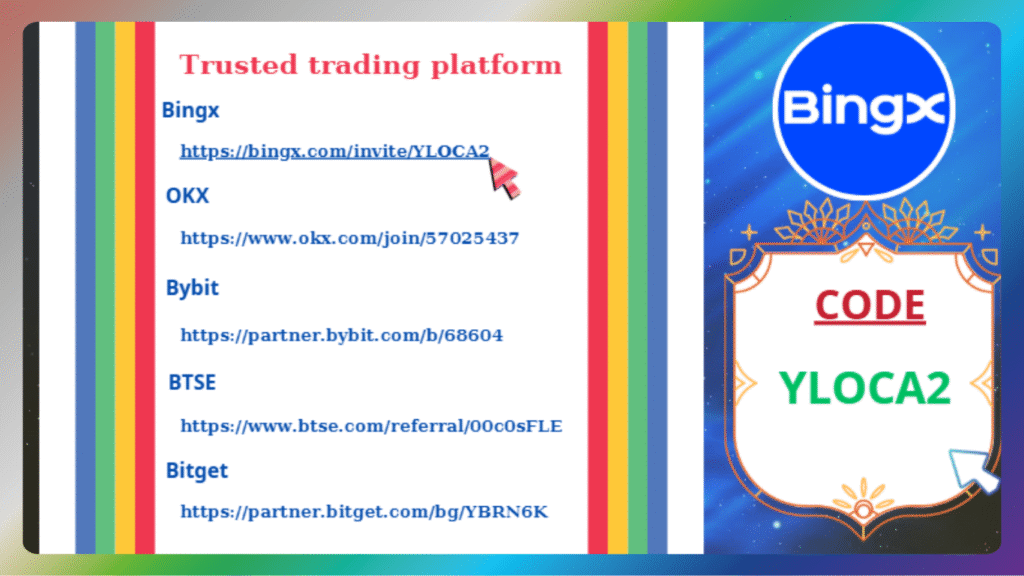
Step 1: Go to the official BingX website: www.bingx.com
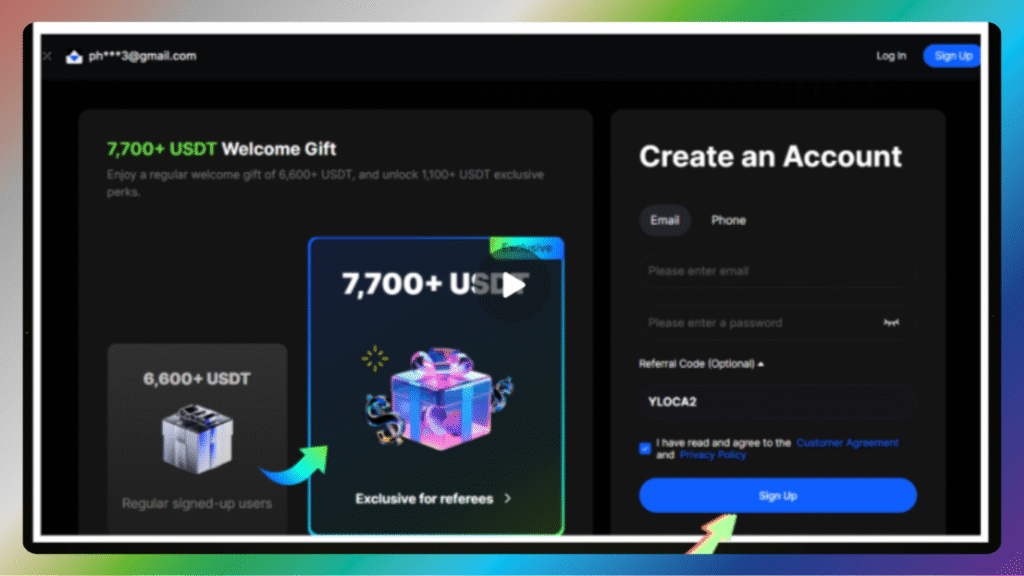
Step 2: Click on the “Sign Up” button on the top right.
Step 3: Enter your email or phone number, create a password, and click “Next”.
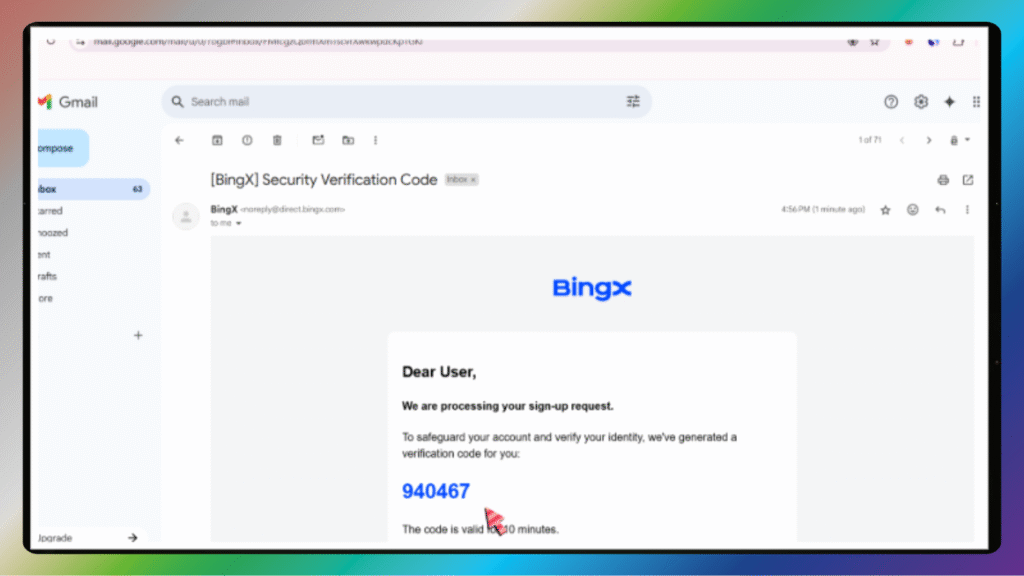
Step 4: You’ll receive a verification code via email or SMS. Enter it to continue.

Tips: Use a secure email and a strong password.

Security Settings

After registration, security comes first.

Step 1: Go to your account settings and enable 2FA – Two-Factor Authentication.
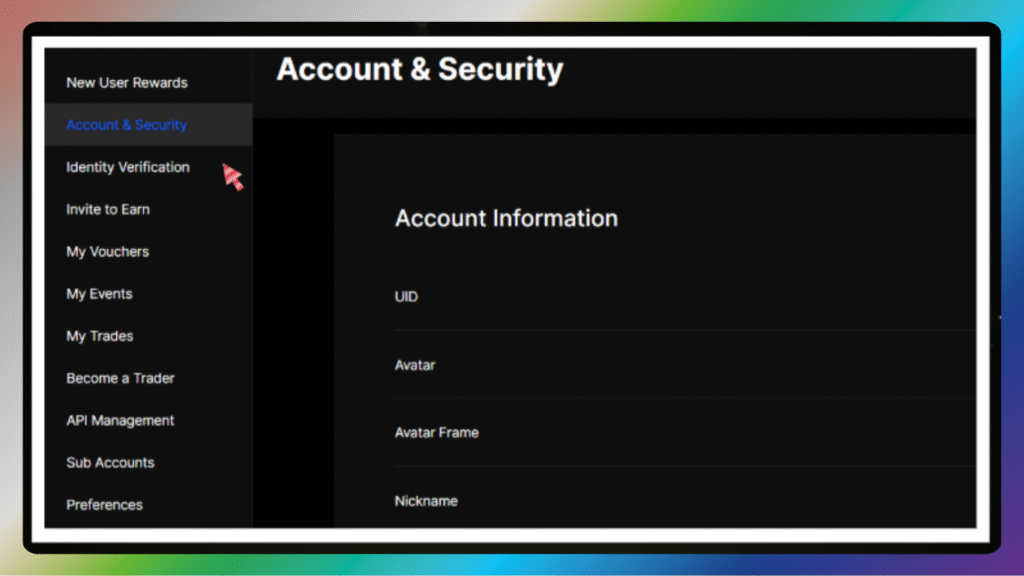
Step 2: You can use Google Authenticator or SMS verification.
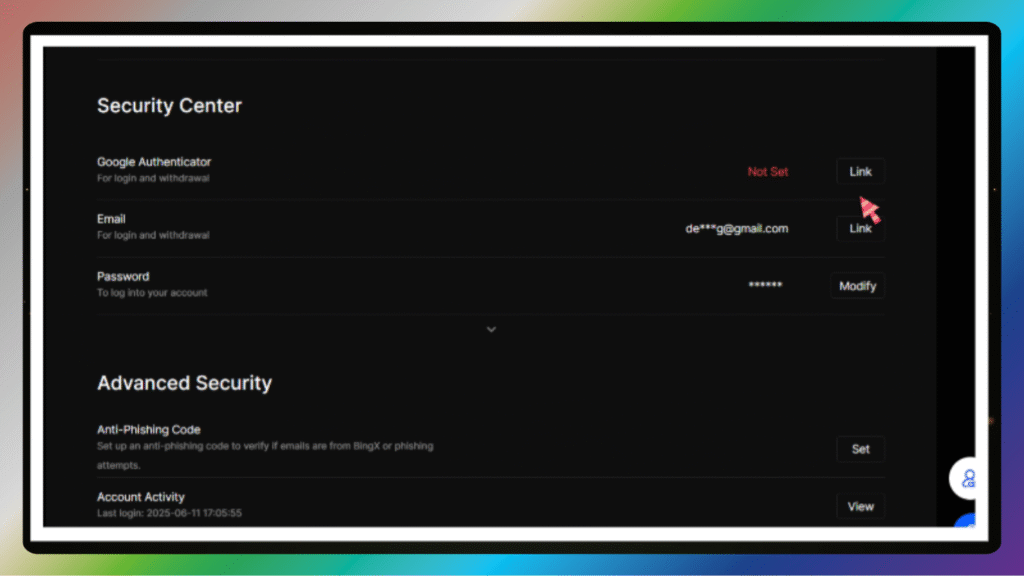
We recommend Google Authenticator for stronger security.

Scan the QR code, enter the 6-digit code, and you’re done.

Identity Verification

To unlock all BingX features, you need to verify your identity – also known as KYC.

Step 1: Go to “Account” → “Identity Verification”.
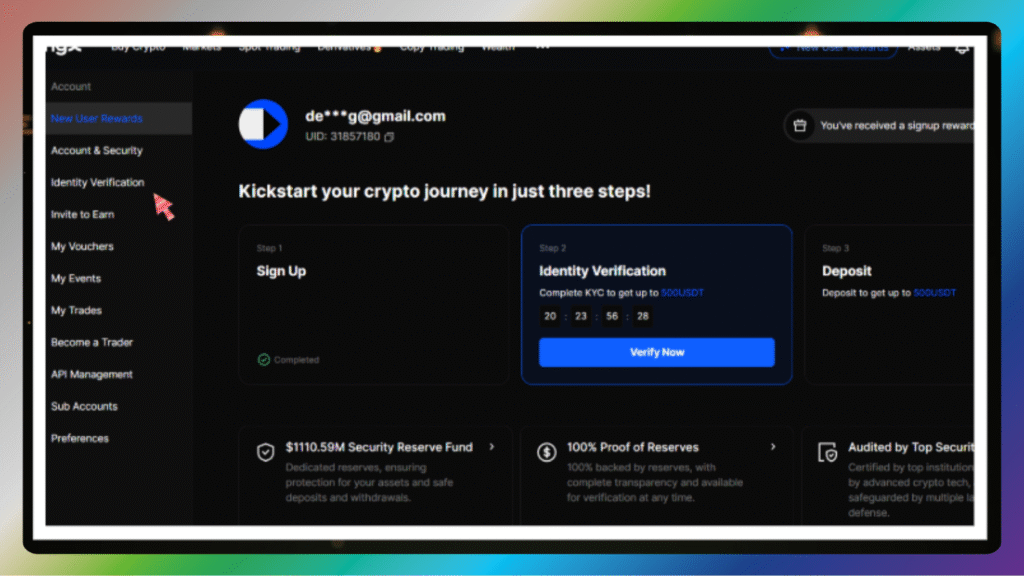
Step 2: Choose your country and ID type: passport, ID card, or driver’s license.
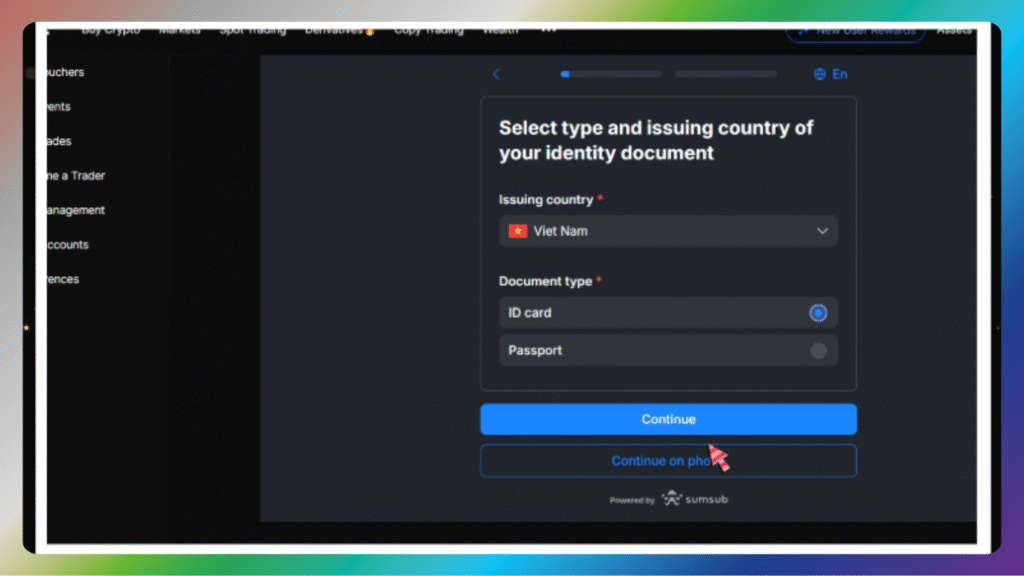
Step 3: Upload front and back photos of your document.

Step 4: Take a selfie holding your document for face verification.
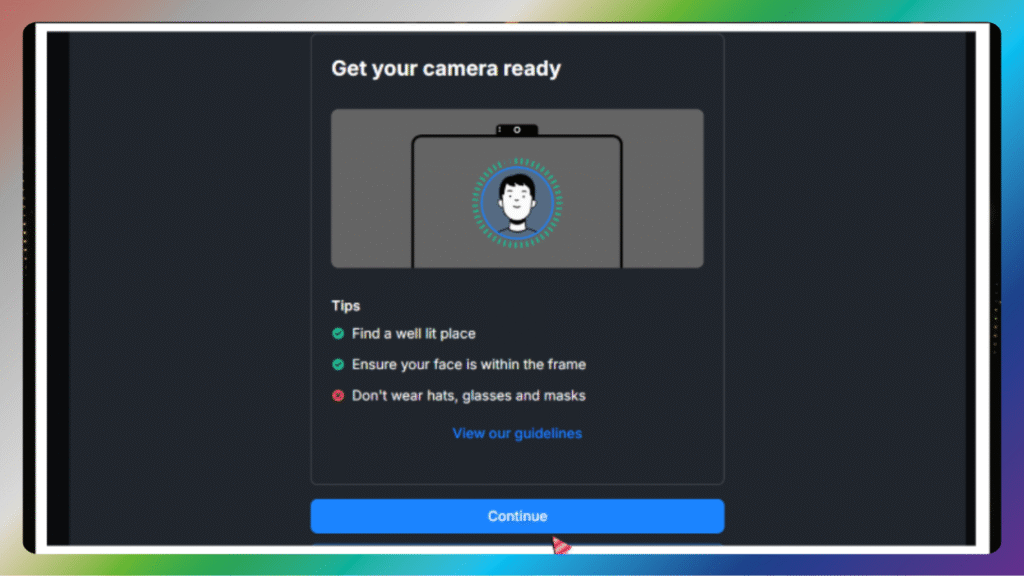
Step 5: Make sure your face is clear and the text is readable.
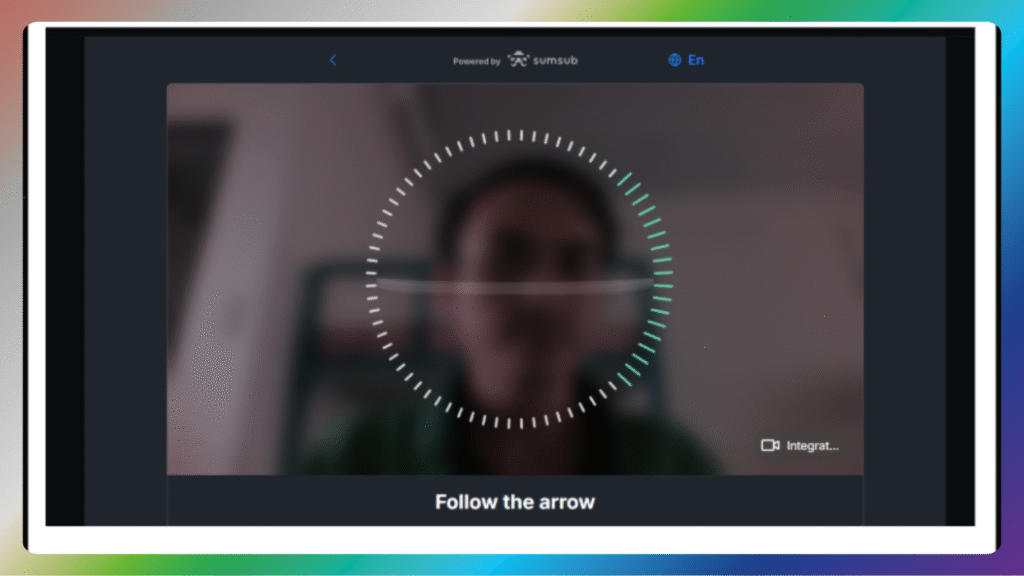
Verification usually takes 10–30 minutes.


Author

phanvietphung

Follow Me
Other Articles
Previous

FXGT Partnership Program – Earn Up to $20 per Lot

Next

OKX Registration Guide for Beginners

No Comment! Be the first one.

Leave a Reply Cancel reply

Your email address will not be published. Required fields are marked *

  • AI Generator
  • AI Video
  • AI Voice
  • AI Writing
  • Crypto Exchange
  • Hosting Domain
  • Hosting Email
  • Hosting WordPress
  • IB Program
  • Review
Banner đối tĂĄc

Company

Partner with VP9XCapital and explore powerful affiliate opportunities across hosting, finance, software, and digital services.

California, TX 70240
vp9xcapital@gmail.com
+1 415-555-8888

Partnership

  • About Us
  • How It Works
  • Become a Partner
  • Affiliate Program
  • Digital Services
  • Contact Us

Platforms

  • Hosting Reviews
  • Finance Platforms
  • Crypto & Forex
  • AI Tools
  • VPN Services
  • Software Deals

Resources

  • Blog
  • Guides
  • FAQ
  • Community
  • Help Center
  • Advertise
Copyright 2026 — VP9X Capital. All rights reserved. Blogsy WordPress Theme

SUBMIT YOUR INFO

List of Exchange Partners